Plan the week
How to plan the week’s dinners
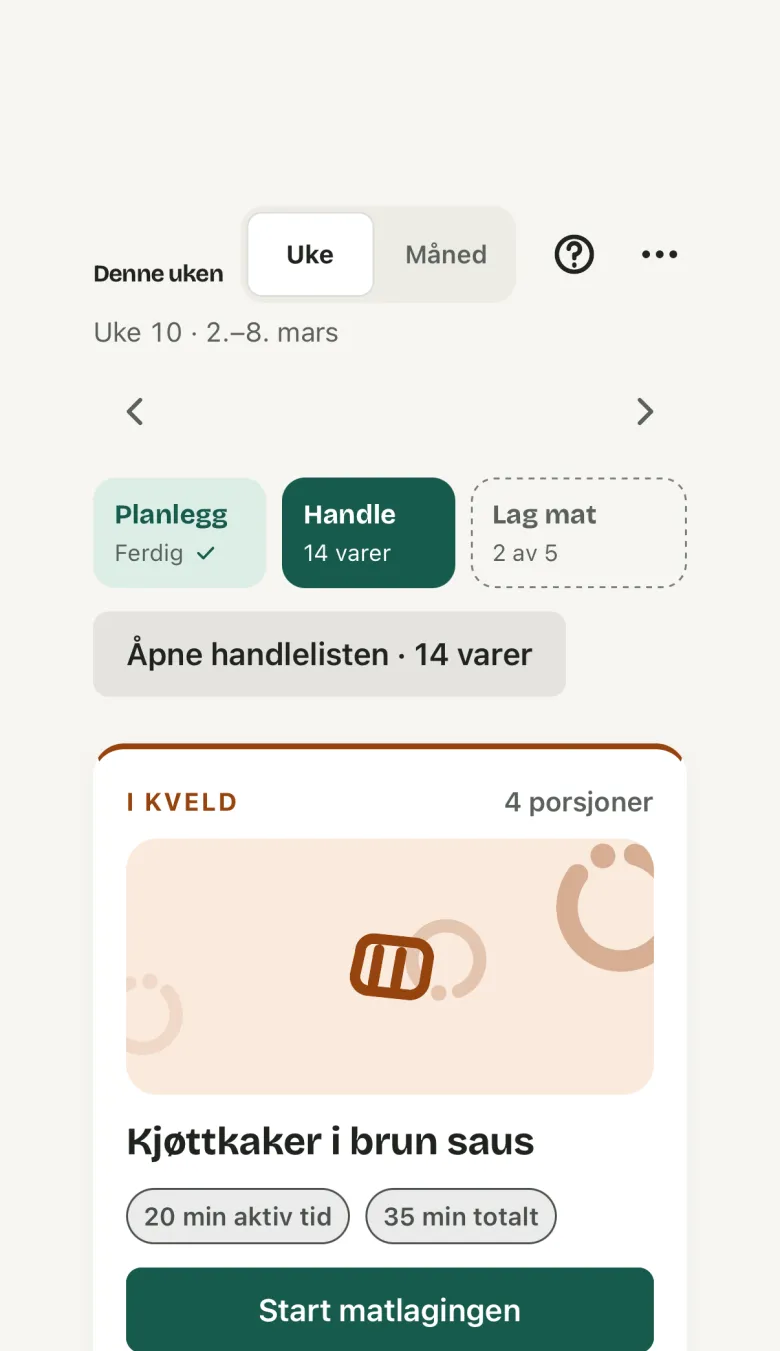
Bryti plans dinners for the week around your family calendar. It fills in the free days using your rules and the food you already have.The Week page guides you step by step, from planning to shopping and cooking. If no one has planned the week yet, it will say Nothing planned yet.The first week comes from the starter library and is not personalized yet. The card will show The week is filled from the starter library, and Tailor the week creates a plan for your household.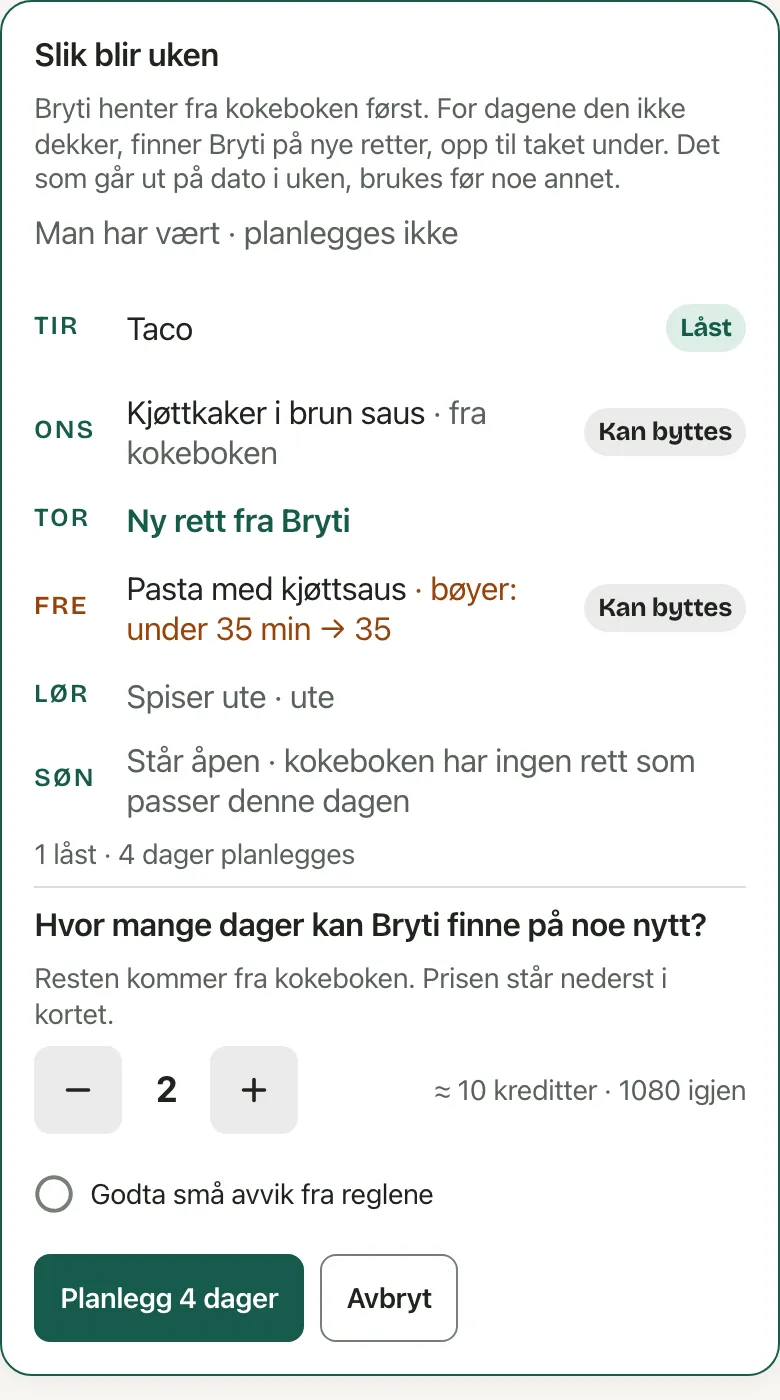
 If Bryti needs to make an exception to a rule, the deviation strip will show which rule and why. If some rules cannot work together, Bryti will tell you which ones clash and suggest a solution.If there is a baby under one year old at the table, Bryti tries to make a safe baby portion every day. It first tries to plan a week where every day has a baby portion, then a week where at most one day is missing one.If neither option works, Bryti still picks the day. Emma’s sister eats with the Solbergs every Wednesday and brings Nora, who is eight months old. On a day like that, the day card can say: “No safe portion for Nora, so the freezer is the answer”. Swap is right next to it.You can also ask Bryti for this in the chat.
Step by step
- Start by adding anything special about this week, such as guests, someone being away, eating out, or a busy evening. Tap Guests, away, eating out … on the day, even before it has a dinner.
- Tap Plan the week. Once your allowance is nearly used up, the price appears below the button, along with the credits you have left.
- Bryti first shows This is how the week looks, which lists the days your own recipes cover and which days need new dishes. It also lets you know if a day only works with a small deviation from a “prefer” rule.
- Decide how many new dishes you want and whether you accept the deviations. Then tap the button at the bottom, which shows how many days it will cover.
- Bryti uses up any food that will expire this week first. The day shows what its dish uses up.
- Just tap once and you can move on with your day. The card will show Bryti is working on your week, and if other households are planning too, you will see your place in line.
- When your week is ready, it will appear here and you will get a notification on your phone.
Settle the days yourself before Bryti plans
Each day with a dish has a button in the sheet. Tap it once for Locked, and the dish will stay, with the same lock as on the day card.Tap it again for Not this one. Bryti will then find something else for that day and will not suggest that dish again this week.If you tap it a third time, it goes back to Can change.If you want to pick the dish yourself, tap Swap on the day. When you return to the sheet, the day will be locked to the dish you chose.Nothing is saved until you tap the button at the bottom. If you close the sheet before that, the swap is undone.Days that have already passed are gathered on one line at the top, and Bryti does not change them. Below the days, you will see a line showing how many you have chosen.If you have already checked off the shopping list, the sheet will let you know. New items are added, and anything you have already bought stays on the list.Afterwards, new appears above the dish on the days Bryti just planned, until someone swaps it.Bryti considers your house rules, the events and calendars you have connected, and who is at home. It also checks your pantry, including any food you have added since the week was planned.Worth knowingBryti uses the recipes you already have as far as they go, along with the starter library and dishes you’ve had before.
The week leans towards what’s in season in Norway, like cod in March or lamb and cabbage in October. A suggestion with something in season may say “In season now.” A dish you’ve made before won’t drop out just because its season has ended.Fastelavn, Easter, 17 May, Midsummer Eve, the start of school and Christmas Eve each get a question on Home a few days ahead. Bryti asks whether you’d like ideas for that dinner. If you tap Not this year, Bryti won’t ask about that day again until next year.If your own recipes cover the whole week, it costs nothing. You can choose how many new dishes Bryti can suggest in Bryti’s settings, under Days I may make something up, per week.What the week costs
NotePlanning a week costs 15 credits, plus 5 for each day Bryti has to come up with a new dish. Once your allowance is nearly used up, you see the price before you tap. If it runs out, the button is turned off and tells you why.
When the week is ready
The week is ready when every day has a plan, whether it is a dish at home, eating out, or leftovers. If some days are missing a plan, the card shows how many days have dinner, with Plan the rest next to the button for the shopping list.Worth knowingThe baby eats separately when a dinner does not suit in Bryti’s settings is off to begin with. If you turn it on, Bryti plans without the baby, but the day still says the portion should come from the freezer.
Use up, in the week
If something needs to be used soon, a card above the week lists each change on its own line, such as “Thursday: chicken wok → chuck stew”. It shows how many items the changes use up. The days involved get a Use up pill that opens Swap directly on the suggestion.On the Home page, Bryti asks the same question in the morning message. Yes makes all the changes, Choose which lets you choose, and Bryti remembers No thanks for that date. Locked days and days that have passed are never changed.Home only suggests changes for the current week. If there is nothing left to swap this week but something needs to be used next week, the card shows what needs using and offers Next week, which opens that week.On Sundays, the current week is only one day long. There is nothing to confirm on Home, and you will find the swap on the Week page.Lock, and plan again
Lock on a day means Bryti leaves it alone when the week is planned again. Plan the open days fills only the days without a dinner, without asking.Plan the whole week again shows the week as it is now. Every unlocked day is listed with its dish and Swapped out, and gets a new one.Lock the dishes you want to keep, or rule them out. This costs the same as making a new plan.When every day is finished or its dinner has been made, there is nothing left to plan. The sheet will not open, and the button will say Plan next week.Right after planning, you can use Undo to bring back the previous week. However, the credits will not be returned.Days that have already passed stay the same. If the table changes later, such as with guests, someone away, or a new member, the portions will update too. A banner will then offer to update the list for free.Plan the week
Go to Week
Opens in the app