Shop
How to use the shopping list
Everyone in your household shares the same shopping list, which is based on the week’s menu. Prices come from receipts, and your own count the most.The Shopping page always displays the next week you haven’t shopped for yet. Once you’ve planned dinners for that week, the list includes the ingredients for the planned portions, except for what the pantry says you already have.You never have to rewrite your list. It updates on its own if you swap a dinner or run out of something in the pantry. If anything has changed since you last checked, you’ll see a message at the top: The list changed since you last looked.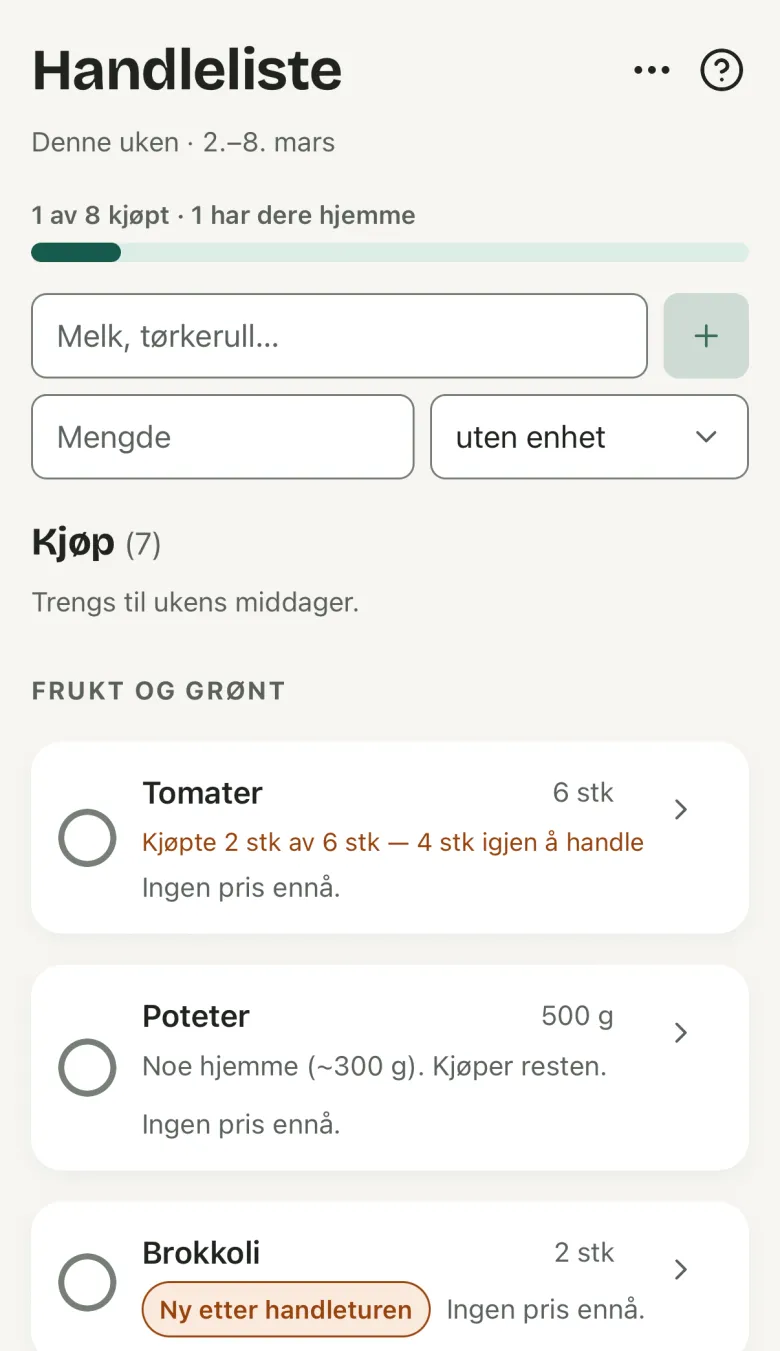
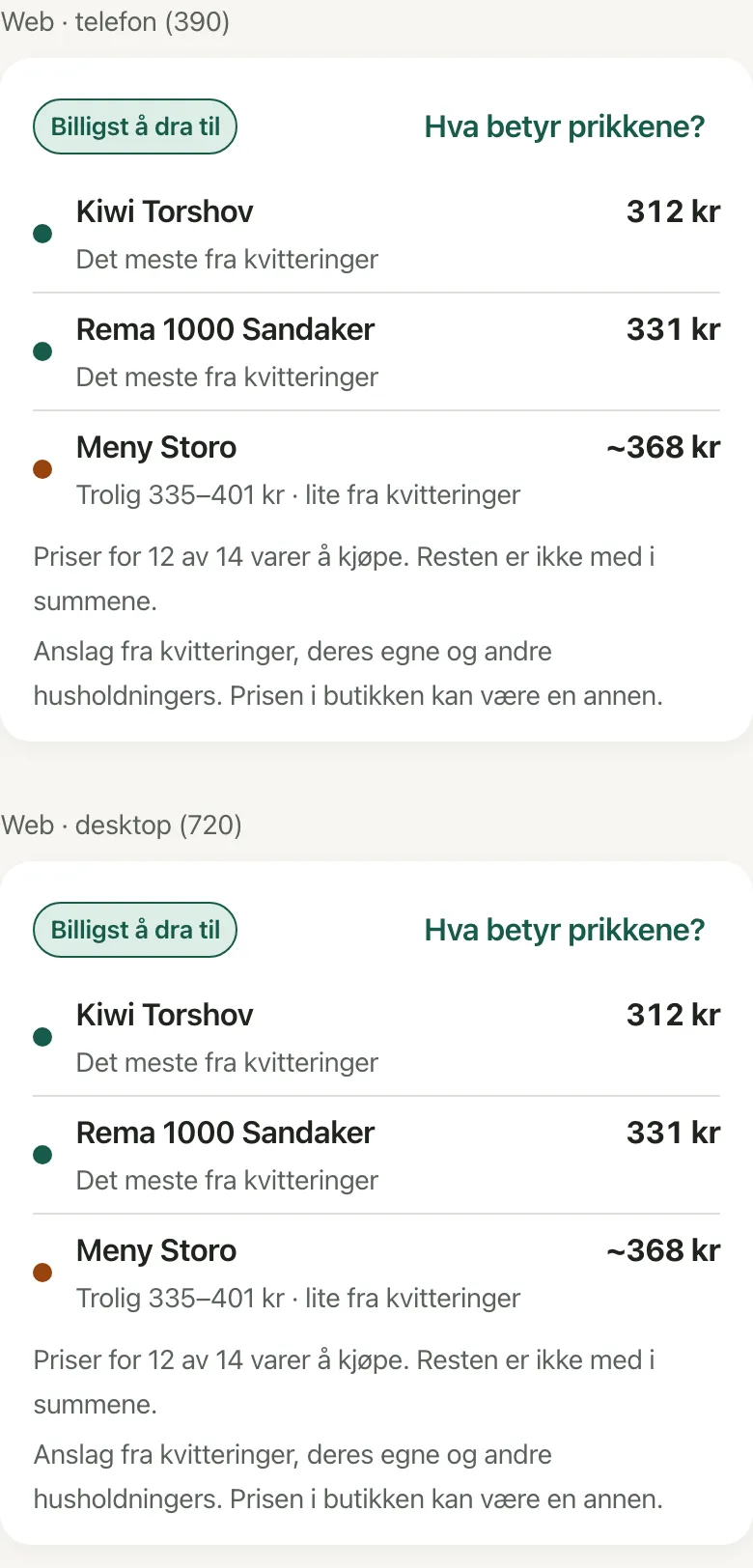 Each store has a dot showing how sure its total is, and the line under it says how much of the total comes from receipts. What do the dots mean? explains the three colors. A store without enough prices of its own gets no total.The card shows the product a price refers to. Switch to another one, and Bryti can remember your choice.Before you have receipts of your own, an item can still show a price from other households at the same chain. It always carries a mark, because only your own receipts can make Bryti sure. As you add receipts, your own prices count the most.You only see other households’ prices while you’re sharing prices from your own receipts. If sharing is turned off, any item without a price from your receipts will say “No price yet”.
Reading the list
Buy lists items in the same order as you find them in the store, starting with fruit and vegetables and ending with dry goods. Check at home shows what Bryti thinks you might have at home but isn’t certain about.If you already have enough of an item in your pantry, it appears under At home, a folded section after Check at home. Open the section to see what you have. If you find something is missing, tap Out on its line, and it moves to Buy with the full amount.Made a mistake? Tap Have it after all on the line, or open the item and choose Have it at home. The ring on a line always means bought. What you have at home isn’t counted, and the progress bar shows how many there are.Each line explains why it’s on the list, such as which dinners it’s for or if it was “used up recently.” If a line only relates to dinners you’ve already cooked, it moves down to From earlier this week. This section stays closed until you open it.These lines aren’t counted, and Done shopping doesn’t mark them as bought. They will carry over to next week’s list.Check at home
Check at home contains the items Bryti isn’t sure about, and none of these count as things you need to buy. They might be items the pantry saw some time ago, or staples like rice or butter that haven’t been mentioned yet. Staples are marked Staple, not seen yet.Each line has Have it, which crosses it out and tells the pantry you have that item. There’s also Out, which moves the item to Buy. You can undo either action for a few seconds.NoteA Junior sees the lines but not the buttons. The buttons change the household’s pantry, and that’s a job for an adult.
In the store
- 1.Tap the ring to check off an item as you put it in your cart. Undo stays available for five seconds.
- 2.If you buy a different amount, tap the line and save the correct amount under Amount, using grams, pieces, or packs.
- 3.Bryti converts using the weight you entered, or the one from Matvaretabellen if you didn’t provide it. If that isn’t possible, the line stays open with the amount you bought.
- 4.If you need something that isn’t for the planned dinners, Add something suggests items from your own list and pantry. It also understands entries like “1 l milk” typed all at once. Tap Add to the list to add the item.
- 5.When you’re at the checkout, tap Done shopping. Bryti moves the items you checked off into the pantry, and the list moves on to the next week.
Worth knowingAfter shopping, Bryti asks for your receipt. Import receipt reads it to learn your stores’ prices and what you actually bought. Before saving anything, Bryti only shows you the lines that are worth checking.
Prices and stores
Prices come from receipts. Bryti makes one price out of what you paid and, if you share prices, what other households paid at the same chain. Your own receipts count the most, and a receipt from the same store counts more than one from elsewhere in the chain.New prices count more than old ones. A price counts in full for two weeks, then half as much every 30 days. After 180 days it no longer counts.The price also shows how sure Bryti is. A sure price stands on its own. A tilde, “~”, in front of the amount means Bryti is fairly sure. When Bryti isn’t sure, it reads, say, “approx. 190 kroner”, and you also see that it probably costs 170–210 kroner.Other households’ prices are only used once at least three households have bought the item at that chain. The price is rounded to whole kroner and never says who paid, at which store, or when.If no receipt gives a price, Bryti uses the store’s listed price.With Choose stores, you can select the stores you shop at. The list estimates the basket’s cost at each store, so you can compare the cost of one trip versus splitting it up. The card only calls a store the cheapest when the difference is clear.Each store has a dot showing how sure its total is, and the line under it says how much of the total comes from receipts. What do the dots mean? explains the three colors. A store without enough prices of its own gets no total.The card shows the product a price refers to. Switch to another one, and Bryti can remember your choice.Before you have receipts of your own, an item can still show a price from other households at the same chain. It always carries a mark, because only your own receipts can make Bryti sure. As you add receipts, your own prices count the most.You only see other households’ prices while you’re sharing prices from your own receipts. If sharing is turned off, any item without a price from your receipts will say “No price yet”.Cheap now. Buy two, freeze one?
Sometimes you’ll see Cheap now. Buy two, freeze one? under a line on your list. This means one of your stores is selling it for at least 15% less than your usual price. Bryti works that out from your receipts, and from other households’ if you share prices.You’ll only see this for foods that freeze well, such as meat, fish, bread, and butter, and only for items you’ve bought yourselves. Bryti only asks when it’s sure, or fairly sure, of what you usually pay. The list will show at most two of these suggestions.If you tap Yes, buy two, the same amount is added again and the line updates to show the new total. If you tap No thanks, the suggestion is hidden on this list for as long as the app is open.What the products you buy are
Below the basket card, you’ll find a quiet card called What the products you buy are. It checks your own receipts from the last 30 days and looks up the products in Open Food Facts. It tells you how many of the products were heavily processed, for example: “28 of the 41 products Bryti recognized, out of 60, were heavily processed.”This share only includes the products Bryti recognized. Because a receipt line has no barcode, the summary also tells you the total number of products.Below that, you’ll see Bryti’s own description and the source, such as “Heavily processed · NOVA 4.” This describes the products, not your household.The card doesn’t make any recommendations and only uses your own receipts. If you don’t have receipts from that period, the card won’t appear.Under the source line, the card lists up to five products under Some of the products Bryti recognized, as Bryti recognized them: “Grandiosa Original · Stabburet · 350 g.” Under each name, you’ll see how processed it is, and High sugar or High salt if it’s over the limit.These are the five most recent products Bryti recognized, whatever they may be. The names are shown so you can see what Bryti actually read and notice if anything is incorrect.The card doesn’t rank or color any items, and What is NOVA? explains the steps. If Bryti didn’t recognize any products, there won’t be a list.Follows your preferences
If you’ve added allergies, intolerances, a diet, or anything you avoid under People in Settings, the list chooses the cheapest product that matches your needs. Allergies are always taken into account, even for products you picked yourself.If a product matches your preferences, you’ll see a gray pill labeled Follows your preferences. Behind the arrow, you’ll see how much more it costs than the cheapest option. If Open Food Facts doesn’t know what’s in a product, there’s no pill, and behind the arrow it says Bryti does not know what is in this one.If nothing on the line matches your preferences, the cheapest product is still shown. There will be a note explaining this and a reminder to check the product yourself.High sugar and high salt
Behind the arrow, a line might say “High sugar · 54 g per 100 g” or “High salt · 1.8 g per 100 g.” This appears when Open Food Facts lists more than 22.5 g of sugar or more than 1.5 g of salt per 100 g.These limits are based on the UK front-of-pack label, which uses a single figure per 100 g for all foods. The number is always shown next to the word, so you can decide for yourself what Bryti means by “high.”You’ll see the same word when you scan a barcode into the pantry, just below the processing level. If the product is under the limit, or Open Food Facts doesn’t have the number, nothing is shown.Bryti never praises any product. The word is just for your information and never removes a product from the list.NoteThe list shows you what has changed since you last checked, such as new items added after your last shopping trip. With Share the list, you can send the list as plain text to someone who doesn’t have an account.
Go to Shopping
Opens in the appGo to Stores
Opens in the app