Keep things in order
Who can do what
This section explains what owners, adults, and juniors can do, and how to invite someone to join your household.When someone signs in to your household, they get one of three roles. Their role decides what they can do. Adults can plan, shop, and talk to Bryti, just like the owner.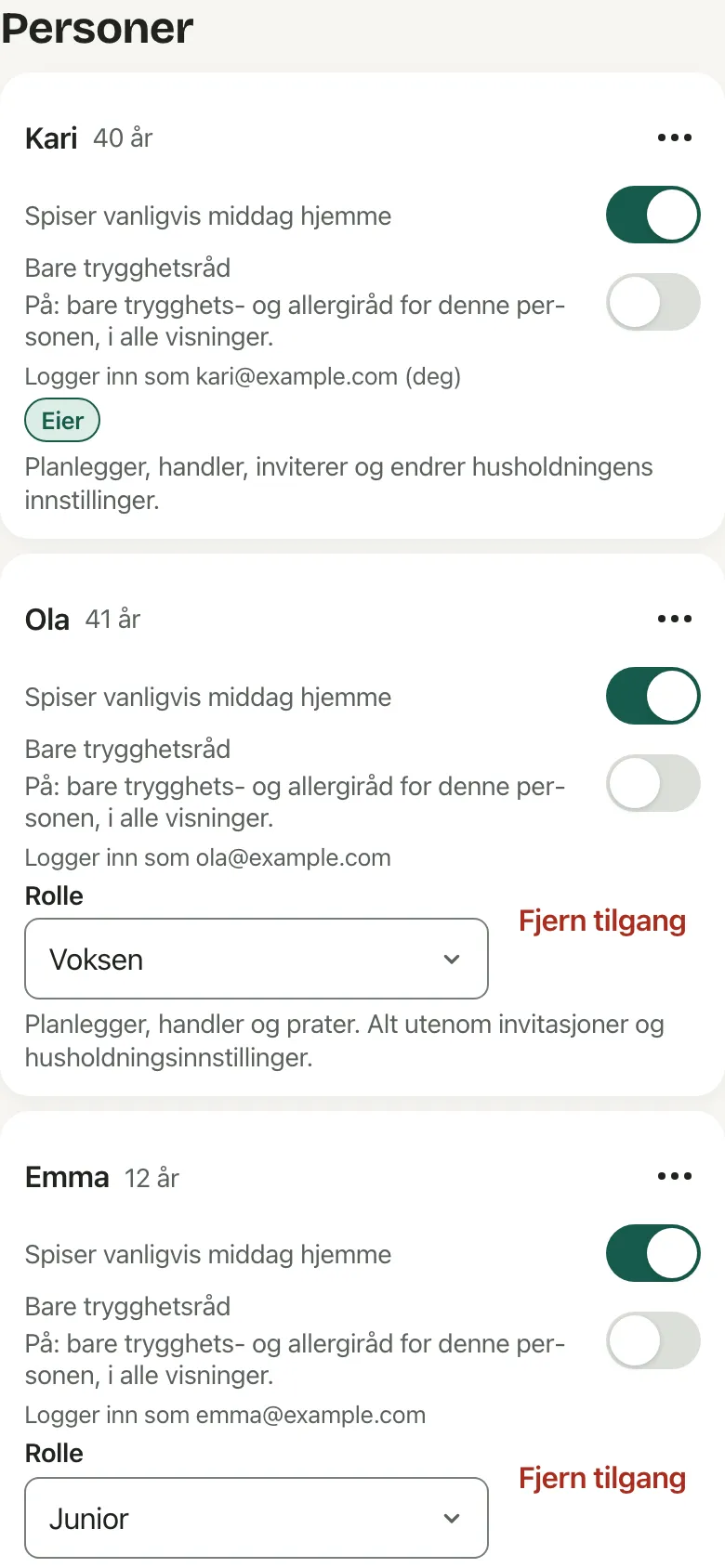
The three roles
- Owner: This is the person who started the household. The owner can plan, shop, invite people, change roles and household settings, manage the subscription, and delete the household.
- Adult: Adults can plan, shop, and talk to Bryti. They can do everything except invite people, change roles, or adjust the household’s settings.
- Junior: This account is for children aged 13 and up. Juniors can see everything, chat, check things off the list, note something in the pantry, and mark dinner as cooked.
NoteIf a Junior requests something in the chat, it appears as a card that an adult must accept. Buttons that Juniors can’t use won’t appear for them.
Invite someone
- On the Household page, tap Add person to add someone who isn’t there yet. If they’re already listed, use the invitation on their card.
- Choose the role under Invite as.
- Send the link using Share link or Copy link. You’ll only see the link once, and it can be used one time within seven days. Until it’s used, you can Revoke it.
- The person opens the link and signs in or creates an account. After they tap Join household, they join your household and everything is set up.
People without an account
On the Household page, you can add small children, a grandparent who lives with you, or a friend who often eats with you. Just enter their name, year of birth, and portion size.Use Usual guest for someone who shouldn’t be counted every day, but should be easy to add. Allergies and tastes are linked to the person, whether they sign in or not.Leave, remove, switch
You can tap Leave to leave a household. If you’re the last owner, make someone else an owner first. Nothing gets deleted, but you’ll need a new invitation to come back.The owner can remove others by tapping Remove access. The household can only be deleted when no one else is left in it. If there’s an active subscription, it needs to be cancelled first.If you belong to more than one household, you can switch between them in the settings under Which household. Each row shows your role in that household.Go to Household
Opens in the app